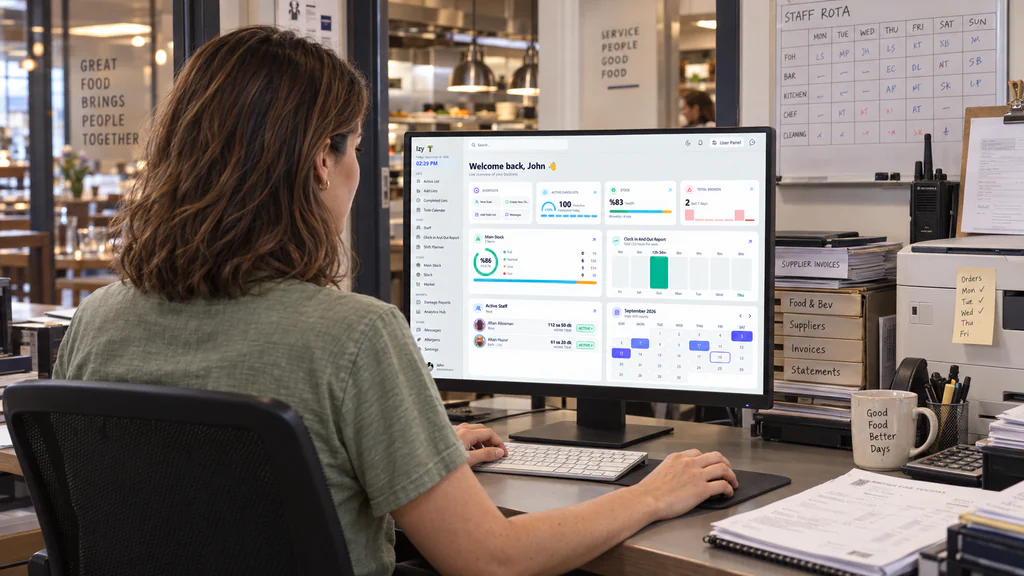
Your hospitality operation, connected in real time.
Staff, stock, checklists and shifts in one cloud workspace for
restaurants.hotels.kitchens.front of house.restaurants and hotels.
No.01Built for the pass, the floor & the front desk.
LiveToday at a glanceService · 12:40
Operations on track86%
Maria clocked inFront of house · 08:02
Allergen record updatedMushroom risotto · Gluten-free
Broken item logged2 wine glasses · Bar
Opening checklist completedKitchen · 10/10 items
01 Built for hospitality
Your operation. Beyond one device.
Software as a Service, built around restaurant and hotel teams.
Access your cloud workspace through a compatible browser and work together in real time.
Any device
Open a browser. Get to work.
Use izybe.app on iOS, Android, Windows, Linux and macOS. Move between a phone,
tablet and computer without being tied to one operating system or a native-only app.
iOS
Android
Windows
Linux
macOS
An internet connection and a compatible modern browser are required.
Camera features depend on device support and browser permissions.
izybe.app / admin
Cloud SaaS · Real-time
A shared view. As work happens.
Keep operational work in a cloud-based system rather than on one local device.
Connected team members can work with updated information as operations move forward.
Real-time operational updates while connected.
One workspace for people, tasks and inventory.
Access through supported mobile and desktop browsers.
For restaurants
From opening checks to the final shift.
Bring daily checklists, staff attendance, stock requests, allergen information and damage records into
the same flow.
For hotels
Keep departments working together.
Coordinate staff schedules, department tasks, internal stock movements and communication across
operational teams.
02 Platform modules
Different tasks. One shared rhythm.
Eleven complementary modules for the people, products and processes behind hospitality.
Future AI assistance is a separate roadmap initiative.
Building connected tools for staff, checklists, stock, shifts and operational records.
WE ARE HERE02
WHERE WE ARE NOW
Demo use in London.
Currently in demo use and trials at selected large London restaurants, within real operational
settings.
03
WHAT COMES NEXT
Commercial launch. Coming soon.
Purchase availability, launch timing and commercial details will be announced here.
04
FUTURE EXPLORATION
AI assistance on the roadmap.
Manager-like workflow support and possible local AI processing are under exploration. Read the roadmap.
06 Looking ahead
AI roadmap · Not yet available
Another set of eyes. On your operation.
We are working towards AI assistance for future izybe.app updates: an operational assistant designed to
help oversee your workflow, much like an extra manager alongside your team.
Our team is giving particular attention to this direction — exploring how AI could identify work that
needs attention, clarify priorities and help teams follow through on daily responsibilities.
The ambition is a smoother, more consistent operation with fewer overlooked tasks. AI would support
people, not replace managerial judgement or guarantee error-free results.
Workflow oversight
Potential tools could review operational activity, highlight incomplete work and bring possible
issues to the team's attention.
Manager-like guidance
The proposed assistant could help organise priorities and suggest next steps, with staff and
managers remaining in control.
A clearer daily picture
We are exploring operational summaries and useful prompts to help teams understand what has been
done and what still needs attention.
Local AI? We're exploring it.
One approach under consideration is local or offline AI processing, intended to reduce the need to send
sensitive company information to external AI services. We want careful control over where operational
data is processed.
This is a design direction, not a final architecture. Cloud AI security depends on the provider,
configuration and data-handling arrangements; local processing also requires appropriate safeguards.
Neither approach is automatically risk-free.
Future plans, not a current product capability.
AI assistance has not been released, and no release date is confirmed. Features, timing and implementation
may change as research and testing continue. We may choose a local, cloud, hybrid or different approach, or
defer parts of the plan. A possible offline AI component does not mean the current cloud platform works
offline.
11 MODULES / PRACTICAL USER GUIDE
01Lists & checklist templates
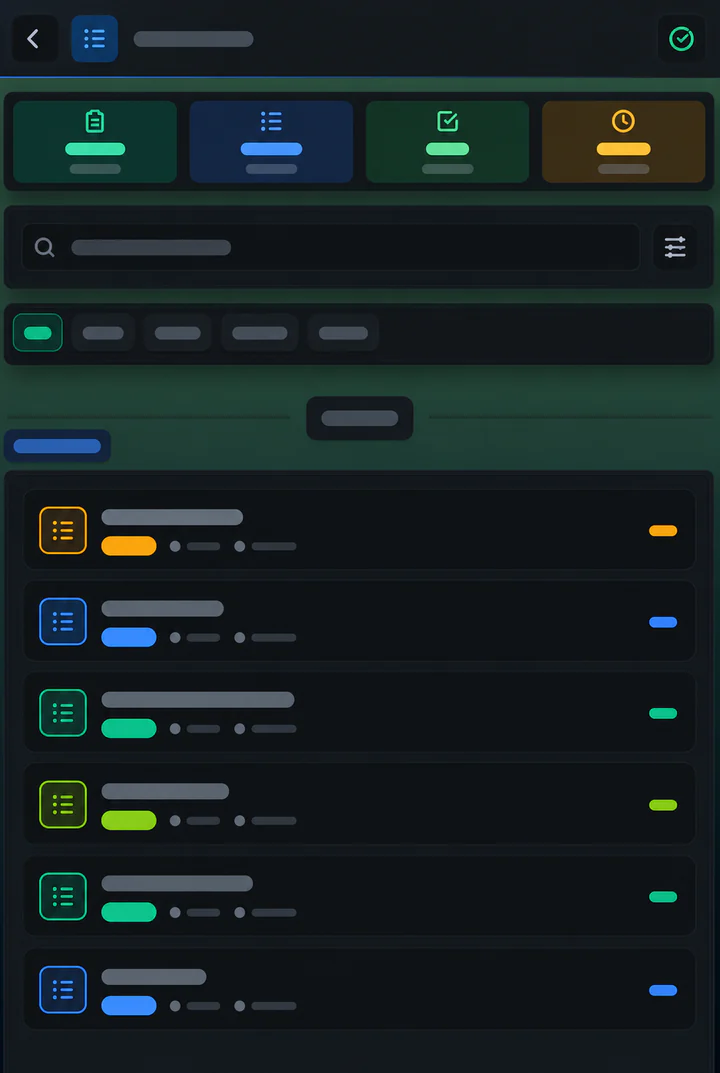
Create reusable Checklist or To-Do templates, start active copies and retain completed records in
history.
Create and use a template
Open Add Lists and choose a template type. Enter a title, category and daily, morning, evening or
custom frequency. Custom schedules include a date and time.
Add items with low, medium or high priorities. Include temperature, weight, quantity or volume
fields where needed.
Use Add Tracked Items to link stock products. Review the summary and save.
Choose Start List to create an active copy. Complete items, enter measurements and finish the
list.
Find and review work
Search and filter by category, date, frequency and list type. Active lists show ten results per page.
Completed Lists contains archived details and completion records.
02Staff management & working hours
Manage employee records, attendance, breaks and working-hours reports. Staff sign in with a personal PIN.
Add and manage staff
Log in to Staff Management and press Add Staff. Enter first name, last name and a unique staff
number.
Choose full-time, part-time or agency status, position and department. Agency staff require an
agency.
Set a four-digit PIN for each staff member.
Search by name or number, or filter by category, position, department and agency.
Attendance and reporting
Enter a staff number and verify identity in Time to Start Work. Start work, take a break or clock out
according to current status. Active Staff List shows current workers; Clock Report provides
attendance, break and net working-time records.
03Main Stock & warehouse organization
Organize the warehouse through shelves, sub-shelves and products, with breadcrumb navigation showing
the current position.
Build your warehouse
Add a shelf with its name and optional color or icon. A shelf created inside another becomes a
sub-shelf.
Add products with name, quantity, minimum quantity and unit.
Use Bulk Add to enter several products through a table-style interface.
Search and export
Search across shelf levels by name, barcode, product code or location. Use barcode scanning, filter
by stock status and export current shelves and items to PDF.
04Stock, reservations & transfers
Manage daily inventory by location. A cart groups products for transactions and temporarily reserves
selected quantities.
Complete a transaction
Open a location and add products with name, quantity, minimum quantity, unit and optional barcode
or category.
Add quantities to the cart using the plus button beside products.
Choose Purchase to increase stock or Transfer to move products to another location.
Enter supplier, price or destination information as required and complete the transaction.
Review movements
The statistics menu provides purchase, transfer and bulk-add history, plus low-stock alerts. Product
search operates within the current location.
05Market & internal stock orders
Staff request products from Main Stock and Stock. Managers review and process those orders.
Create and process an order
Select New Order, requesting staff, destination and stock source.
Find products, adjust quantities and add an optional note. Both stock sources can contribute to
one order.
Place the order with pending status.
Open order details and choose Process, Complete or Cancel.
Find orders
Search by staff, destination or product. Filter by date and pending, processing, completed or
cancelled status.
06Weekly shift planning
Create category-based weekly plans, organize staff into sub-groups and publish daily assignments.
Plan the week
Log in to Shift Planner and create a plan with title and category.
Select a Monday start date. Sunday is calculated as the end date.
Add staff, daily start and end times, and shift types.
Publish the plan. Update assignments in edit mode and publish changes.
View schedules
Search plans by name, category or date. Details show a weekly calendar. Staff Shift Plan lets
employees view their schedule using their staff number.
07Messaging, broadcasts & polls
Supabase Realtime supports direct conversations, polls, broadcasts, unread counts and typing
indicators.
Communicate with the team
Press New Conversation, find a company user and open the chat.
Write a message and press Send or Enter. Conversations are ordered by the latest message.
Create a poll with a question and at least two options. Multiple-choice voting is optional.
Use broadcasts for announcements and edit your name, avatar and color through the profile control.
Poll results
View vote counts, percentages and the voters who selected each option. Unread counts update as
messages arrive.
08Allergen & ingredient information
Maintain food and drink records with allergens, ingredients, categories and departments.
Maintain food records
Enable edit mode and log in with staff credentials.
Add a food name, category, department and optional image.
Select contained allergens, enter ingredients and save.
Open cards for details or use edit mode to update and delete records.
Filter and export
Search by name, filter by category or department and exclude specified allergens or ingredients.
Export the current filtered list as PDF.
09Damage tracking & reports
Track stock products for damage, record quantities and review time-based and product-based
statistics.
Track damage
Press Add to Tracking and complete staff login.
Select the stock product and damage type.
Open the tracked product, select Add Damage, enter the quantity and save.
Filter by product, damage type and time range. Choose grid or list view.
Analyze and export
Review total damage, today's damage, needed quantities and report counts. Export reporting as Excel,
PDF or TXT.
10Calendar tasks & history
Unlike reusable templates, these task lists belong to specific dates and can be assigned to
departments and multiple staff members.
Plan and complete tasks
Select a day in Todo Calendar and create a task list.
Enter a title, optional department and staff assignments, then add items.
Save to the chosen date. Task days are marked on the calendar.
Complete items in list details. Finished lists move to history.
Filter and review
Combine department and staff filters. Inspect completed lists through History and edit existing lists
through their card controls.
11Administration, settings & backups
Separate everyday preferences from administrative configuration. Admin Panel access requires
administrative credentials.
User preferences
Update profile and appearance.
Configure checklist schedules and daily reset behavior.
Adjust sounds, message notifications and stock alerts.
Search activity logs and filter by activity type.
Administrative controls
Configure dashboard categories, colors, visibility and damage settings.
Manage accounts, roles, module access and editing permissions.
Maintain departments, positions and agencies.
Set PIN protection and admin credentials.
Backup and restore
Export data as JSON, import a previous backup and configure available automatic backup settings.
Review previous records in backup history.
No matching topics found. Try another module,
feature or action.
08 Permissions & data
Clear access. Considered actions.
Know who can make changes, which records remain available and which actions deserve a second
look.
01 / Access
Give each role the right tools.
Controls separate viewing, module access and editing permissions.
Category visibility and module access.
Staff editing permissions.
Settings PIN protection.
Supported authentication methods.
02 / History
Keep the working record.
Review records created by daily work, not just the current screen.
Completed checklists and calendar tasks.
Attendance and working-hours records.
Purchase and transfer history.
Damage reports and activity logs.
03 / Exports
Take useful information with you.
Modules provide exports suited to their operational records.
Main Stock and allergens: PDF.
Damage statistics: Excel, PDF and TXT.
Application backups: JSON.
Restore controls in the Admin Panel.
These controls support operational administration, not a claim of regulatory certification.
Configure access appropriately and review destructive actions before confirming.
09 Frequently asked
A little clarity. Before you begin.
Learn about cloud access, the launch and the difference between today's platform and future AI plans.
What is izybe.app?
izybe.app is a cloud-based SaaS platform for restaurant and hotel operations. It brings staff,
checklists, stock, shifts, internal orders, messaging and operational records into one browser-based
workspace.
Does it work on iOS, Android, Windows, Linux and macOS?
Yes, through a compatible modern browser and an internet connection. Supported phones, tablets and
computers can access the platform. Camera features depend on device capabilities and permissions. This is
browser access, not a claim of separate native apps for every system.
Is the system cloud-based and real-time?
Yes. The platform supports real-time operational workflows while connected. An internet connection is
required for cloud access and real-time updates.
How long has the application been in development?
izybe.app has been in development for two years, bringing hospitality workflows into a connected system
covering staff, tasks, stock and reporting.
Is it already being used in London?
The application is currently being used and tested in demo form at selected large restaurants in London.
These are demo deployments and trials ahead of the commercial launch.
When will it be available for purchase?
Commercial availability is coming soon. A launch date and pricing have not yet been announced here.
Contact info@izybe.app with product or launch enquiries.
Does izybe.app have AI assistance today?
No. AI assistance is a future roadmap initiative, not an available feature. The team is actively
exploring its design and possible integration for later updates. No release date is confirmed.
What could the planned AI assistant do?
The goal is manager-like support for daily workflows: helping highlight incomplete work, clarify
priorities, summarise activity and suggest next steps. These are proposed capabilities, not final
specifications. Staff and managers would remain responsible for decisions.
Why are you considering local or offline AI?
We want to minimise unnecessary transfer of sensitive company information to external AI services and
retain control over data processing. Local or offline inference is one option under consideration. It is
not yet implemented or selected as the final approach, and local processing would still need appropriate
security controls.
Could the AI integration plan change?
Yes. Research, testing, hardware requirements and operational needs may lead to local, cloud, hybrid or
another implementation. Features and timing may change, and parts of the plan may be deferred. Roadmap
descriptions are not a commitment to a specific release.
Would offline AI make the whole application work offline?
Not necessarily. A local AI component and an offline application are different capabilities. The current
cloud platform requires internet access; exploring local AI does not change that requirement.
Will AI make every workflow flawless?
No software or AI can guarantee perfect outcomes. Our aim is to reduce overlooked tasks and improve
consistency and visibility. Any future AI suggestions would still require appropriate human review.
What is the difference between Main Stock and Stock?
Main Stock organizes the warehouse through nested shelves. Stock manages daily inventory by location,
including reservations, purchases and transfers. Market orders can use products from both sources.
Which reports can be exported?
Main Stock and Allergens provide PDF exports. Damage Statistics supports Excel, PDF and TXT.
Administrative backup and restore uses JSON.
Where can I follow launch updates?
Check this website and the Contact section. Official Instagram, Facebook, X and LinkedIn links are coming
soon. You can also email us with questions.
Are the screens on this website live?
No. This is a product introduction and user guide. The application screens are screenshots rather than
live staff, inventory or messaging interfaces.
10 Contact & updates
Let's talk. Stay in the loop.
Running a restaurant or hotel? Ask about the platform, our demo stage, the commercial launch
or our future AI direction. We'd love to hear from you.
Product questions, demo enquiries, launch information and collaboration
opportunities.
A new rhythm for hospitality
Connected teams. A clearer working day.
Cloud-based operations for restaurants and hotels. Commercial launch coming soon. Future AI assistance is on
the roadmap — with thoughtful data handling at the centre of our exploration.